(For both the StreamMORE Bundles and StreamMORE Singles subscriptions.)
CelcomDigi App
- Log in to CelcomDigi app
- Go to Lifestyle and select My Subscriptions OR go to My Plan and select Lifestyle Subscription
- Select Disney+ subscription
- Go to Access via and click on Disney+, you will be directed to the new Disney+ App
Disney+ App
Download the new Disney+ app via Play Store or App Store
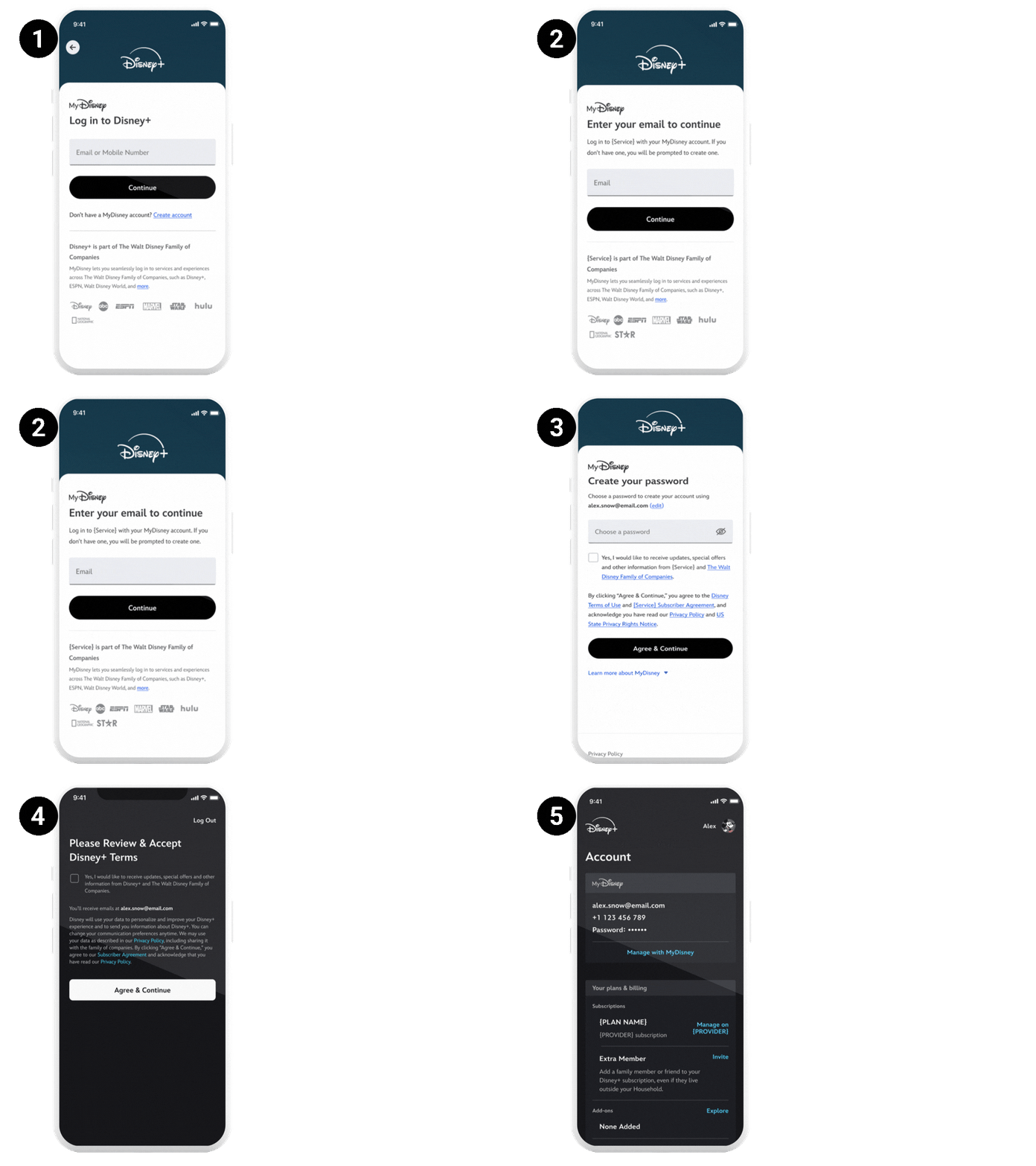
Scenario 1: Disney+ Activation Set Up with New Mobile Number and New Email
- Click Create Account to start
- Enter your Email and click continue
- Create your password and click Agree & Continue
- Agree to Disney+ Terms & Marketing Opt-In and click Agree & Continue
Scenario 2: Activation with New Mobile Number and Existing Email
- Enter your Mobile Number and click continue
- Notification - Shown if new mobile is entered
- Enter your Email and click continue
- Notification - Existing Email is entered
- Enter your password and click Log In
- Agree to Disney+ Terms & Marketing Opt-In and click Agree & Continue
- Profile – Logs in to existing account
Scenario 3: Activation with Existing Mobile Number
- Enter your Mobile Number and click continue
- Shown if Existing Mobile is entered
- Enter the OTP and click Continue
- Agree to Disney+ Terms & Marketing Opt-In and click Agree & Continue
- Profile – Log in to existing account
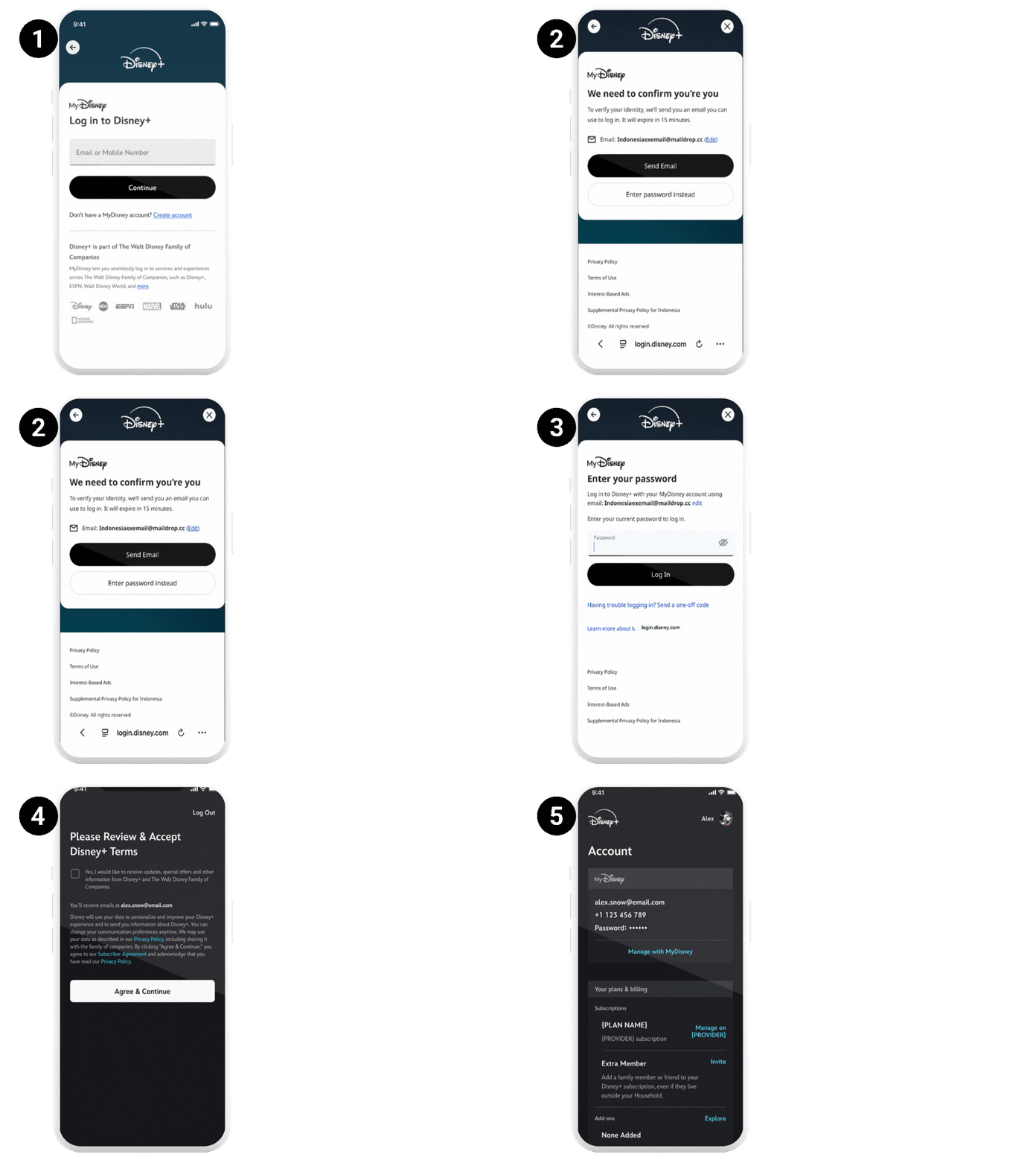
Scenario 4: Activation with Existing Email
- Enter your Email and click continue
- Shown if Existing Email Address is entered
- Enter Password and click Log In
- Agree to Disney+ Terms & Marketing Opt-In and click Agree & Continue
- Profile – Log in to existing account
Scenario 5: Activation with New Email
- Enter your Email and click continue
- Notification - Shown if New Email is entered
- Create your password and click Agree & Continue
- Agree to Disney+ Terms & Marketing Opt-In and click Agree & Continue
- Profile – Log in to account