MobileSHIELD Multi-Device Setup Guide
Modified on Thu, 2 Apr at 10:00 AM
Add Device for Primary User via Email
Log in to MobileSHIELD app
a. Select 'People & Devices'
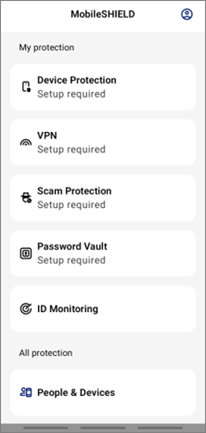
b. Tap 'Add Device'
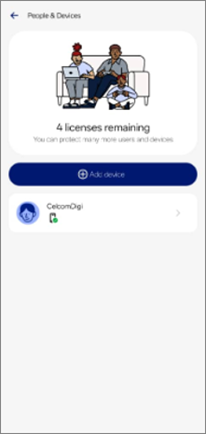
c. Tap on 'My Device (CelcomDigi)' and continue
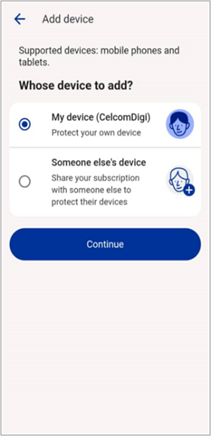
d. Select 'Send by Email and Enter your email address' (Note: Send by SMS option not available at the moment).
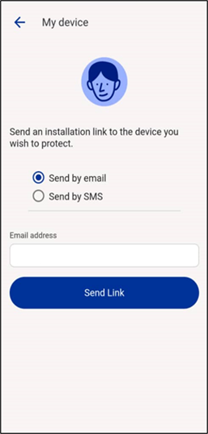
e. An email invitation will be sent, then follow the instructions to proceed
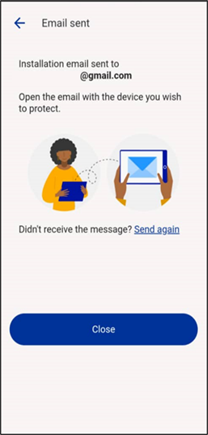
f. Open your email and click 'Install Now'
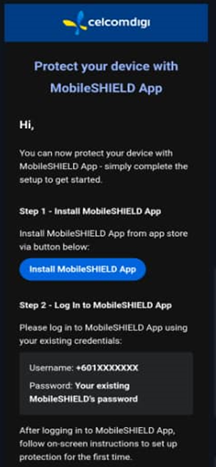
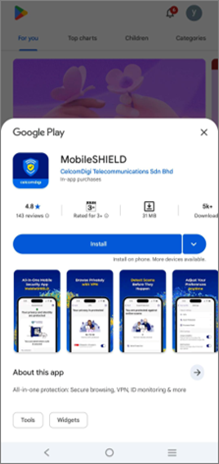
g. Download MobileSHIELD via App Store or Play Store
h. Toggle to accept Terms and Conditions.
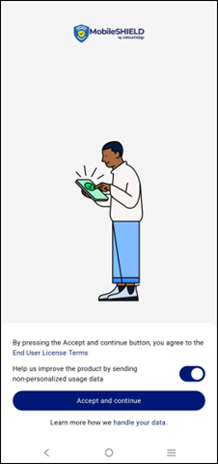
i. Click 'Continue' to close
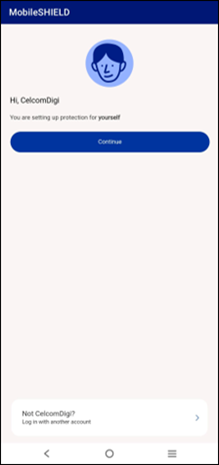
j. Complete the security setup on your Android or iPhone to get full protection
Primary User Invite and add Sub-User via email
Log in to MobileSHIELD app
a. Select 'People & Devices'
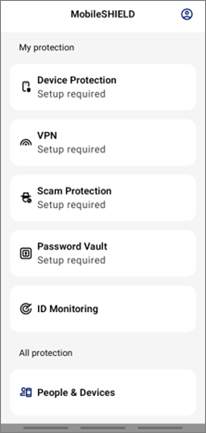
b. Tap 'Add Device'
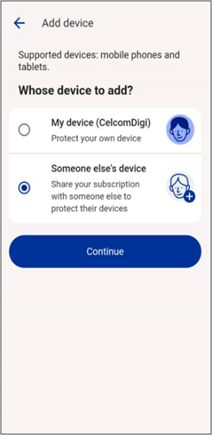
c. Tap on ‘Someone else’s device’ and continue
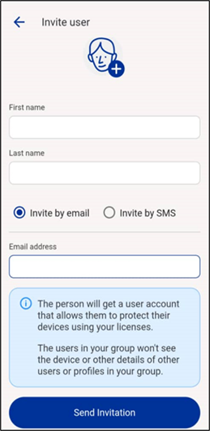
d. Enter Sub-user first name, last name and email address and click ‘Send Invitation’
(Note: Send by SMS option not available at the moment)
e. An email invitation will be sent, then follow the instructions to proceed.
f. Open your email and click “Install Now”
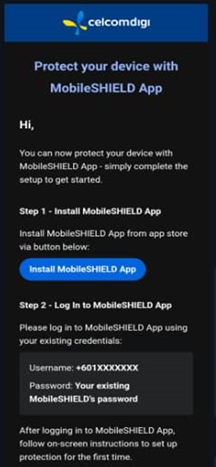
g. Download MobileSHIELD via App Store or Play Store’
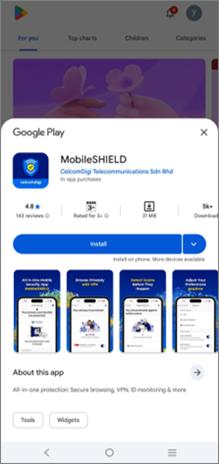
h. Toggle to accept Terms and Conditions.
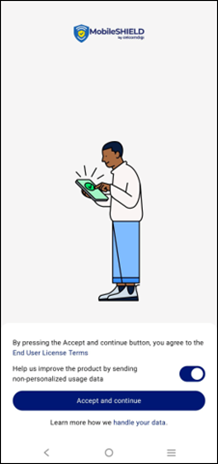
i. Click “Continue” to close
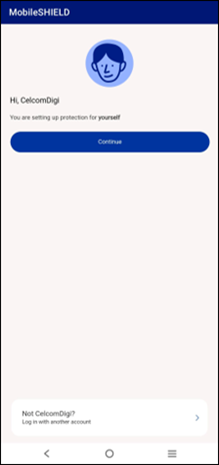
j. Complete the security setup on your Android or iPhone to get full protection
Sub-User add new device via email
Log in to MobileSHIELD app
a. Select ‘People & Devices’
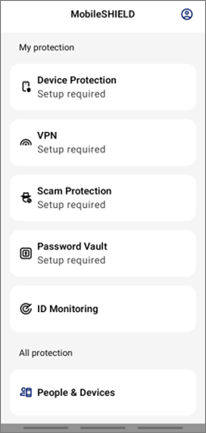
b. Tap ‘Add device’
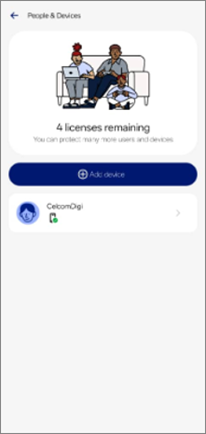
c. Click on ‘Send by email’ and enter your email.
(Note: Send by SMS option not available at the moment)
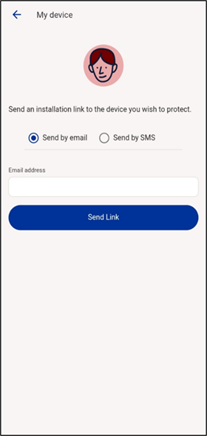
d. An email invitation will send, then follow the instructions to proceed
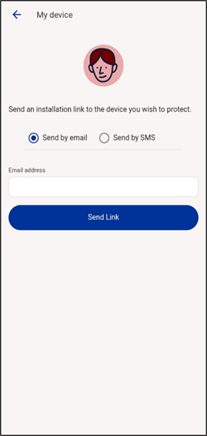
(By Sub-user)
e. Open your email and click “Install Now”
f. Download MobileSHIELD via App Store or Play Store’
g. Toggle to accept Terms and Conditions.
h. Click “Continue” to close
i. Complete the security setup on your Android or iPhone to get full protection
Primary User remove device
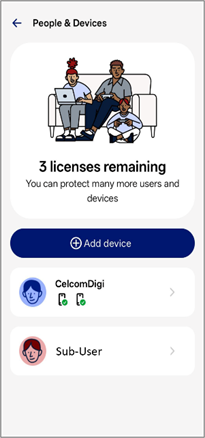
Log in to MobileSHIELD app and select People and Devices
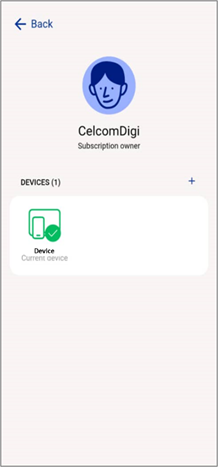
a. Tap on ‘CelcomDigi’
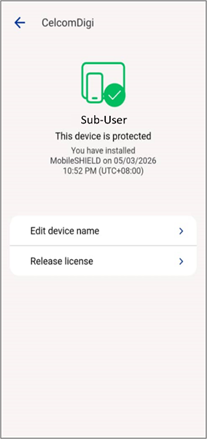
b. Click ‘Release license’
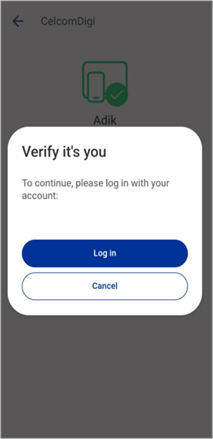
c. Verify for device mobile number and click Log In
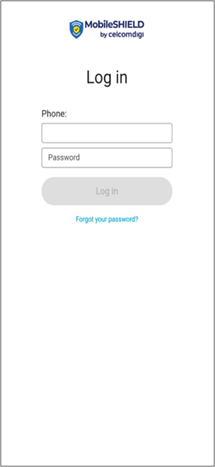
d. Log in your primary credentials
e. Click on “Release license”
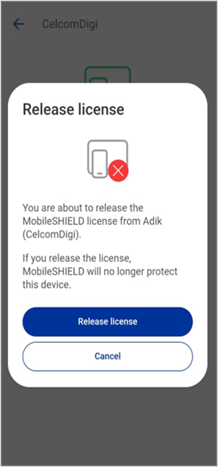
f. Upon remove, number of devices activate will be displayed.
Primary User remove Sub User
Log in to MobileSHIELD app and select People and Devices
a. Tap on ‘Sub-User'
b. Click ‘Release license’
c. Verify for device mobile number and click Log In
d. Log in your primary credentials
e. Click on “Release license”
f. Upon remove, number of devices activate will be displayed.
Sub User remove device
Log in to MobileSHIELD app and select People and Devices
a. Tap on ‘Sub-User’
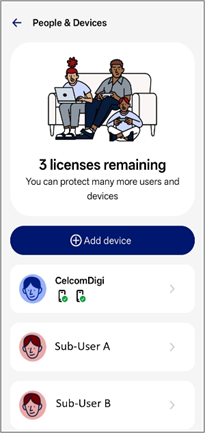
b. Select the device to remove
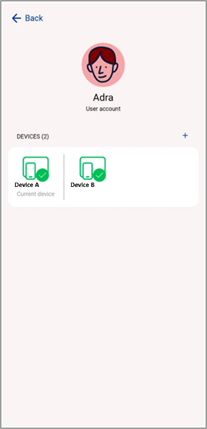
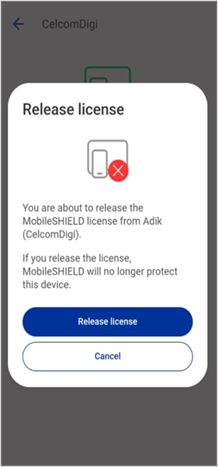
c. Click ‘Release license’
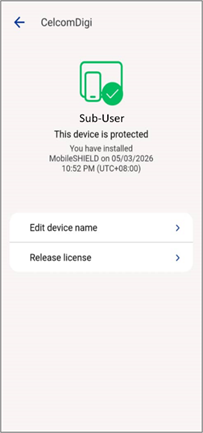
d. Verify your mobile number
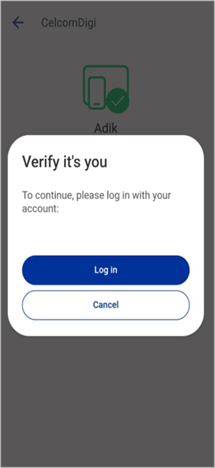
e. Log in your primary credentials
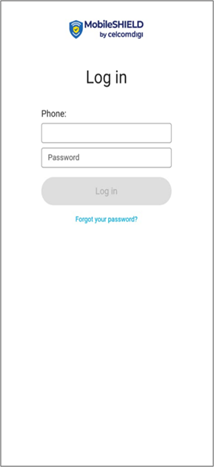
f. Click on ‘Release license’
Was this article helpful?
That’s Great!
Thank you for your feedback
Sorry! We couldn't be helpful
Thank you for your feedback
Feedback sent
We appreciate your effort and will try to fix the article


